
Instructions for Form 720
Note: Autodeclaro is not a consultancy, nor are we tax experts. We simply automate the completion of the Form 720 from the files you provide using the Excel template, statements from your broker or crowdlending platforms, accounts and deposits such as Raisin.
We are not responsible for your use of the information described here. It is your responsibility to check the information or instructions given here with a tax advisor.
You are ultimately and solely responsible for your declaration.
Once we have received our completed Form 720, the next step is to import the file generated in the tax office.
If you don't have it yet, you can generate it at:
The table of contents of this article is:
- Review of marital status and property regime (community property or separation)
- Import and file with the Tax Agency, the Provincial Councils of Guipúzcoa, Vizcaya and Álava, and the Treasury of Navarre.
- Declare cash account (DeGiro, IBKR, XTB and Trade Republic)
Marital status and property regime (community property or separation)
If married in community of property, the spouse would have to complete Form 720.
In Autodeclaro we offer the generation of the 720 model for your spouse at no additional cost, you just have to check the option that you are married in community of property and you need the 720 model for your spouse. This is indicated in the final purchase process.
The obligation of the spouse to report in the Model 720 is explained in the questions frequent use of the AEAT Form 720. And the answer is:
“When the formal ownership of a community property or right belongs to one of the spouses, both spouses (if they are within the subjective scope of the obligation) are obliged to file the declaration.
The spouse who is not the formal holder must declare as the beneficial owner in accordance with Article 4.2 of Law 10/2010 of 28 April 2010 on the prevention of money laundering and terrorist financing.“
Situations that married couples may encounter
1/ Married in separation of propertyEach one presents and reports his or her assets regardless of what the spouse disposes of.
2/ Married in community of property: The spouse owning the assets reports to 100% and the spouse not owning the assets to 50% as above. Autodeclaro generates this file automatically in the order. But there can be two situations
a/ Sole spouse has property abroadThe holder reports to 100% and the non-holder spouse to 50%. A single request is sufficient to inform both the holder and the non-holder.. In the order you will receive a file for each one where you will file directly with the tax office following the instructions
b/ Both spouses own property abroad: In this case, two situations arise
- The holder informs the 100% of his or her assets and the non-holder spouse informs the 50% of those assets.
- And vice versa, the other entitled spouse reports to 100% on his/her assets and the non-entitled spouse reports to 50% on those assets.
In this case two orders would be necessary, one for each holder with the assets he owns. In the order you will receive your assets at 100% ownership and 50% in community of property for the couple.
Submission process for case 2b - Both spouses own property abroad.
Two orders have been placed:
- Order spouse 1720 file extension is obtained with the model 720 of the holder (spouse 1) and also in community of property for the couple (spouse 2).
- Spouse order 2Vice versa, file extension .720 is obtained with the model 720 of the holder (spouse 2) and also in community of property for the partner (spouse 1).
In the example, we are spouse 1
1/ The received file with extension .720 indicating in ganancials (from the order) will be imported. spouse 2) is imported (step 2 of the capture) after filling in the ID card (step 1 of the catch). Full instructions here.
2/ Fill in the personal details of the spouse 1 .
3/ Export (step 3 of the capture) so that the .720 WIN file received in the order spouse 2 have the DNI and full name of the spouse 1.

We now have two files with extension .720
- Form 720 generated during the purchase in the order for the spouse 1
- Form 720 in community of property exported in the previous order step spouse 2 with the personal data of the spouse 1
4/ Import the first file “Modelo 720 generated in the order of the spouse 1”following the instructions: Choose option A - delete declaration and import)
5/ Import the Model 720 in community of property that has been prepared in step 3 with the DNI of spouse 1 and personal data (Choose option B - Add records to the current one.)
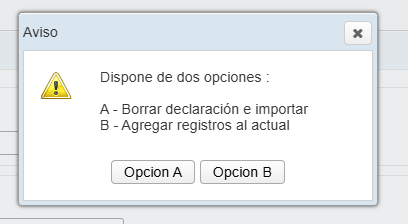
Finally, we would have all the assets correctly charged in your 720 tax form.
Importing and filing with the Tax Agency - Instructions for form 720
Tax Agency
Provincial Council of Gipuzkoa
Provincial Council of Bizkaia
Provincial Council of Alava
Treasury of Navarre
Tax Agency
1/ Import .720 file in the Tax Agency
- Go to the website of the Model 720 Tax Agency.
- Go to the option "Form 720. Fiscal year 2025. Filing (up to 40,000 records)“
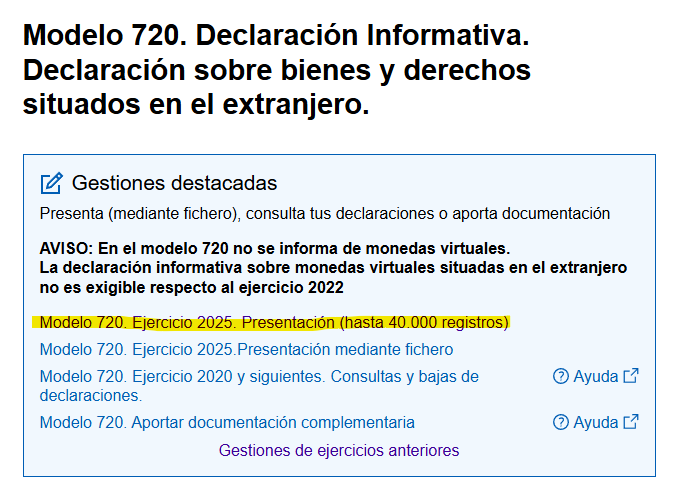
- Identify yourself with "Cl@ave Mobile" (includes Cl@ave PIN) or Certificate or electronic ID card.

- Introduce the NIF of the declarant, (DO NOT IMPORT THE .720 FILE IN THIS STEP) and click on CONTINUE.

- Import the Modelo .720 file completed form (which you received in the mail) that has a format of the type ‘.‘XXXXXXXXXX.720’

- Choose the .720 file

- Indicate the option A

You will then see the information of the imported file and the following errors will appear with a red cross. This is normal, as the imported .720 file is anonymous and does not contain personal data. Proceed to indicate in the following order:
- Indicate your surname and first name in ‘declarant's details' y 'person to relate to‘.
- Indicate your telephone number in ‘Person to relate to‘.

WARNING ICON "Fill in if you know the 'TIN' field in the country of tax residence".
There is also a "Fill in if you know the 'TIN' field in the country of tax residence".. It is an optional field, if not known leave blank, it is not a mandatory field.
The error "Lack of content in 'Country Code'". appears when we do not have the fiscal address of the company. This must be entered manually, and generally corresponds to the country that has the ISIN.

The registers from the second sheet onwards are those which carry the information indicated in the extracts.

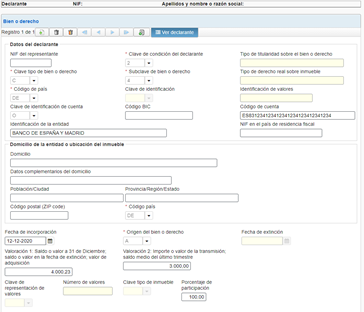
Records type "Origin of the good or right" type "C".
Update: 15 January 2025. Autodeclaro automates the filling in of the value and date of sale from the transactions offered by brokers. DeGiro, IBKR and Revolut how we do for the service of Auto-Renta.
If you have a lot of type C (extinguished) records to complete, please review the instructions for brokers on the Form 720. DeGiro, IBKR and Revolut.
If you have type "C" recordsare extinguished securities (they were declared in your previous Model 720 declaration but you no longer hold them in your portfolio). The valuation indicated by Autodeclaro is 0, so that It would be advisable to update this with the sale value and the date of sale/discontinuation.
Note: Sales during the year of purchases that have occurred in the same year are not reported on form 720.
You can quickly identify the type C records to be reviewed through the summary CSV you receive in the confirmation email.
Note: if you use crowdlending as Mintos or ViaInvest you may have hundreds of type C records. In that case the platform indicates all these records as closing date 31 December of the reporting year.
Check that type C records have valuation and date of sale indicated:

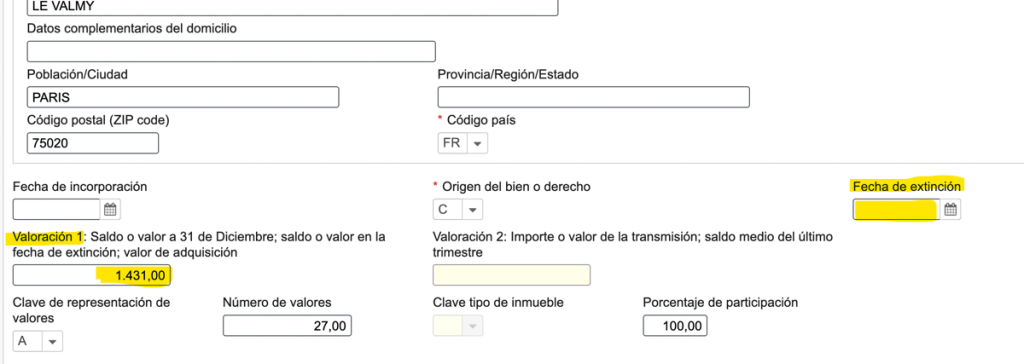
Below is indicated in yellow where to fill it in once it has been imported in the AEAT:
- Sales AmountIn the field "Valuation 1" : In the field "Valuation 1" : In the field "Valuation 2
- If the sale is in a currency other than the Euro, you can make the conversion using the exchange rates indicated by the European Central Bank for that day of the sale.
- Date of saleIn the field "Date of expiry".
In addition, these records of type "C" being extinct valuesappear totalled to the total value of the Model 720.
In other words appear in the sum of the total value that appears in the AEAT's Form 720, is greater than its value on 31 December, as indicated by the broker.
E.g. In the example below, there is a type C record for a value of 49,106.13 euros, and it is added to the total shown in the summary of the 720 tax return at the AEAT.


If we have securities that have suffered a spin-off that we declared in a previous Form 720 and we sell them during the following year, these will appear as a type "C" record. You will have to indicate the amount and date of the sale of the company resulting from the spin-off, which was declared in the previous Form 720 that you have filed in the current year.
Note: To see the day when the ISIN that appears in the C-type registers ceased to trade, here are a couple of tips:
- Web https://es.marketscreener.com/ to search for the ISIN and see the last day and amount of trading, for example: https://es.marketscreener.com/ quote/stock/share/DESKTOP-METAL-INC-131564025/
- Web https://extraetf.com to look up the ISIN and see the last day and amount of trading, for example: https://extraetf.com/es/stock-profile/US00165C2035?tab=chart
- The website is also valid justetf.com it is often interesting to look up the ISIN you have without amount and date, as in the example I show: https://www.justetf.com/en/stock-profiles/US09247X1019#chart searching for the ISIN and usually gives the company's last share price and the date when it has been a spin-off or change of isin the reason for the “C” type registration.
Finally, you can validate the content, add more information or file the Form 720 with the tax authorities by clicking on the "Sign and Send" button. Then continue in the pop-up window to proceed with the filing.


Provincial Council of Gipuzkoa instructions form 720
Once you have the Modelo 720 file generated by Autodeclaro, the DNI that appears in the file is 00000000T.
Once it has been imported into "Zergabidea web", you must generate a duplicate of form 720 and add it to your declarant that you have previously created with your ID card and your personal details.
If you need help, please do not hesitate to contact.
The steps are detailed below.
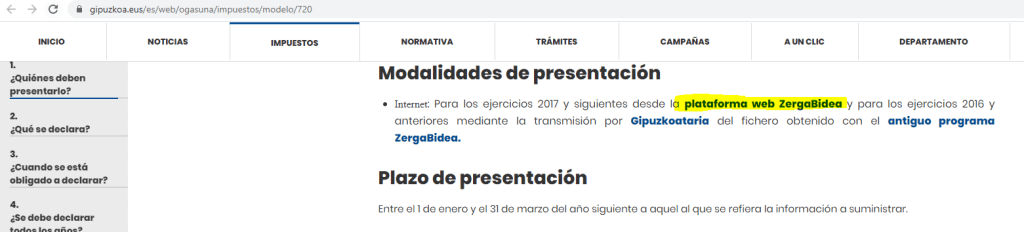
- Go to the website of the Provincial Council of Gipuzkoa for Form 720.
- Go to "Presentation modalities" and go to the web platform 'Zergabidea'.
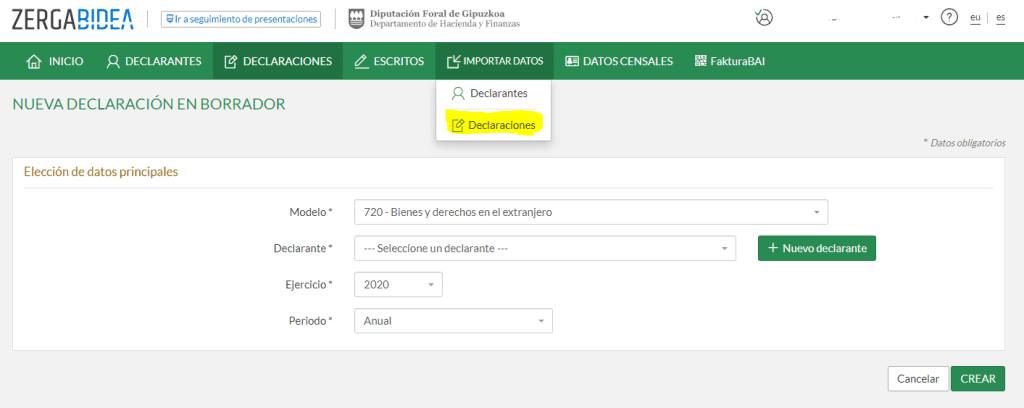
- Log in to the platform with your credentials and go to "IMPORT DATA" -> "Declarations" -> "From file".
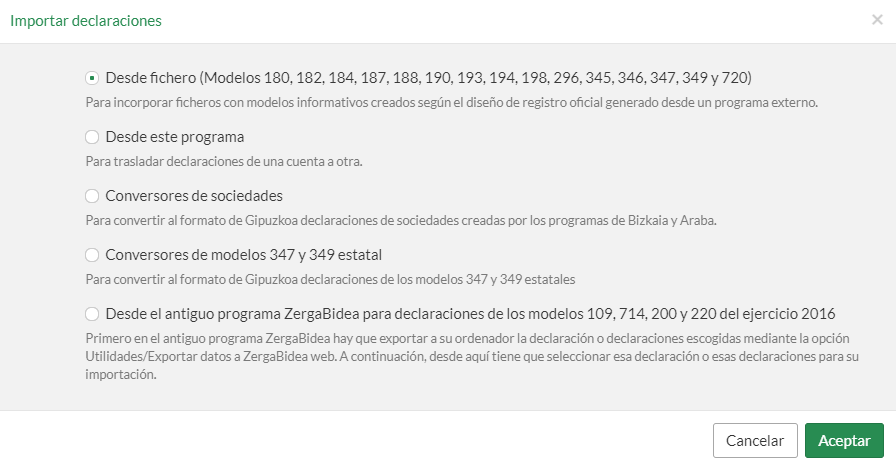
- In this step, you can now import the completed Form 720 that you have obtained through "Auto-720". You can import it in the option "Select the file you want to import".
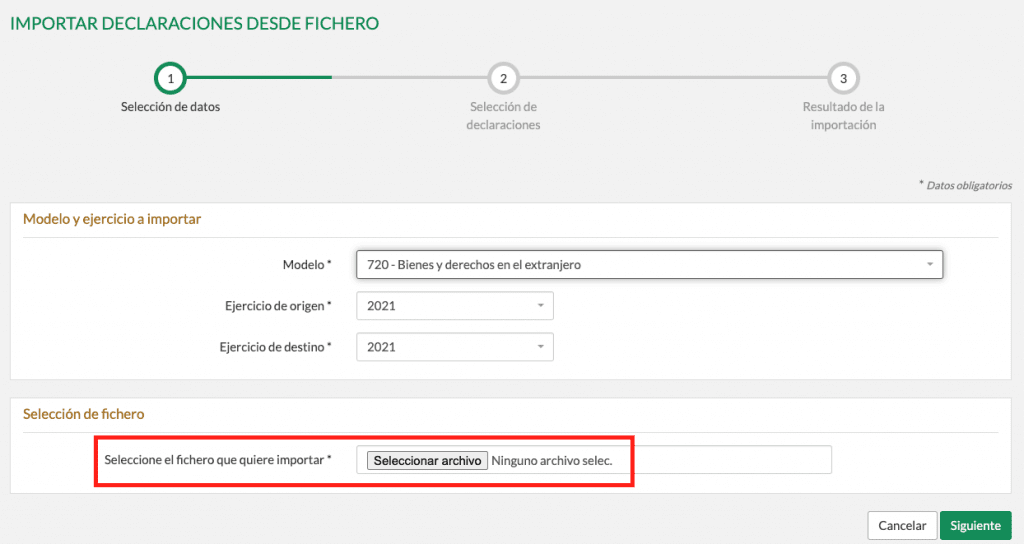
- Once imported, you can select the declaration to import in the Zergabidea tool and go to next.

- You will then receive confirmation of the import of the Model 720.

- And finally you will have it available as recent statements.

- Once we have imported, we will see that a NIF 00000000T appears. It is a generic one that indicates Autodeclaro, but we can duplicate this form 720 for our declarant. To do this, go to the icon ‘+’ and then select the option Duplicate. A window similar to the one below will appear, select our declarant. If we do not have a declarant with our DNI, we should go to the top menu and create a declarant with our DNI and full name.

- Also if you go to the icon pencilIf you go into declaration edit mode, you will be able to see the content that has been finally imported.


Records type "Origin of the good or right" type "C".
If you have records of type "C", they are extinct securities (they were declared in your previous Model 720 return but you no longer hold them in your portfolio). The valuation indicated by Autodeclaro is the value you had in your previous Model 720 return, so it would be advisable to update it with the sale value of the security in question on that day.
The CSV files do not contain the date of sale or its value, so it is not possible to fill it in automatically.
In addition, these records of type "C" being extinct valuesappear totalled to the total value of the Model 720. Therefore it is possible that the sum of the total value that appears in the Form 720 is greater than its value on 31 December, as indicated by the broker.
Provincial Council of Bizkaia
The information page on Form 720 in Bizkaia is: https://www.bizkaia.eus/ogasuna/guregida/fitxabisorea.asp?Tem_Codigo=7884&Idioma=CA&IdPublicoMostrar=1267
However, the way to fill in the Form 720 is by means of the programme/software called Bila. You can download it at: https://www.bizkaia.eus/Ogasuna/software/descargar_instalar.asp?Idioma=CA&Tem_Codigo=10260&dpto_biz=5
Note: If BILA was previously installed, you may get an error message "It is necessary to update the platform as the model to be able to implement the action".

So the BILA programme needs to be updated. Go to the "tools" or the red text of "Critical updates".

Once the pending updates appear, select and click on the button of "Install / Upgrade".

In the event that the Modelo 720 does not appear installed, you have to go to the tab from “Not installed” and search for Model 720
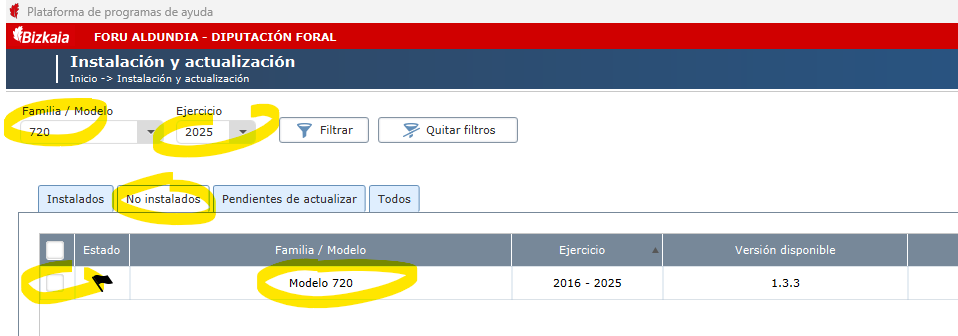
For the process of importing the Form 720 file that has been completed in Autodeclaro, follow the steps below:
1/ Once installed, open the BILA program and once it is open, go to the menu "Utilities -> "Import files in official format".

2/ Select the .720 file you have obtained through Autodeclaro, and indicate the financial year you wish to file. Click on "Next".

3/ You will be shown the result of the import.
Note: The error detected is due to the fact that the declarant does not have an email address. We will see later on how to indicate this.

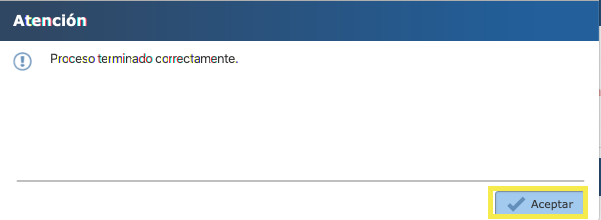
4/ Accept on the next screen
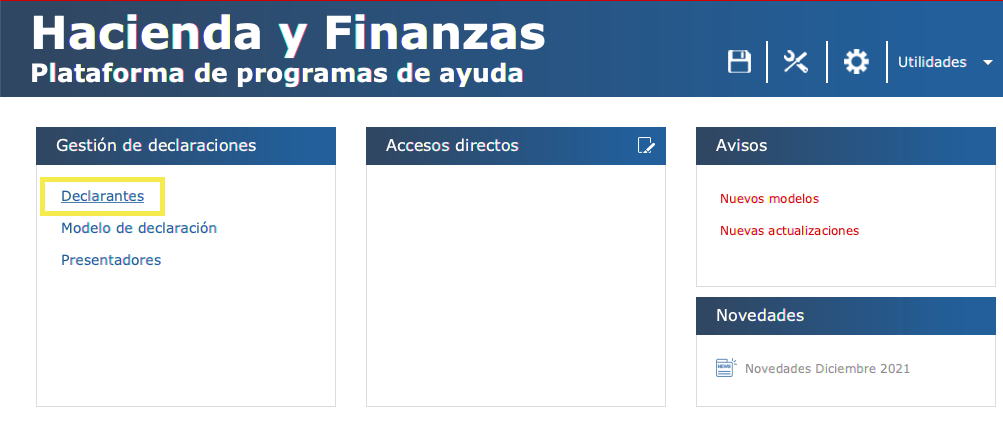
5/ Go to the section "Declaration Management" -> "Declarants".
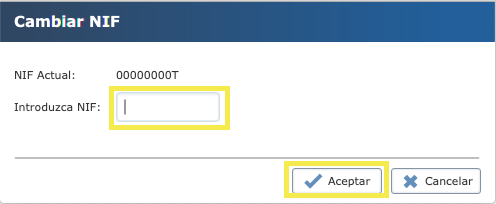
6/ Here you can modify the NIF. By default the file generated in Autodeclaro has the NIF 00000000T.
- Go to the button below “Modify NIF”.”.
Note: If the TIN you are going to enter is already in the database, the application will not allow you to enter it. Go to step 13

7/ I changed the NIF to yours and clicked on "Accept".
NIF/DNI does NOT exist in the list of declarants in the database of the Bila programme
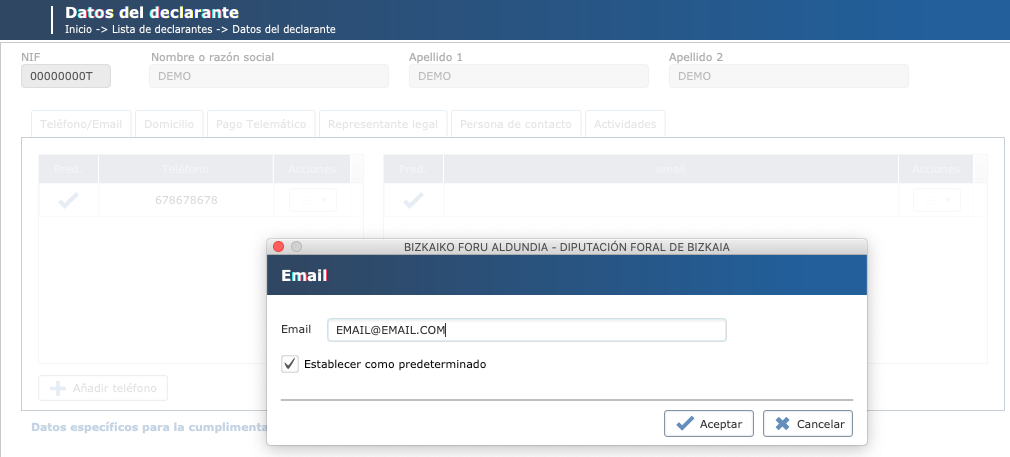
8/ By double clicking on the declarant's details, you can go to modify all the declarant's details. You have to add the email address and set it as default. Click on "Accept".
9/ To view the imported declaration, go to screen "List of declarants" -> "List of declarations". (When you are in "List of declarants", you will see the icon "Declarations" at the bottom right hand side.
When the image below appears, you can see what has been imported by double clicking on the statement in the table below.
If you wish to submit it, there is a "Submit" date icon at the bottom of the screen.

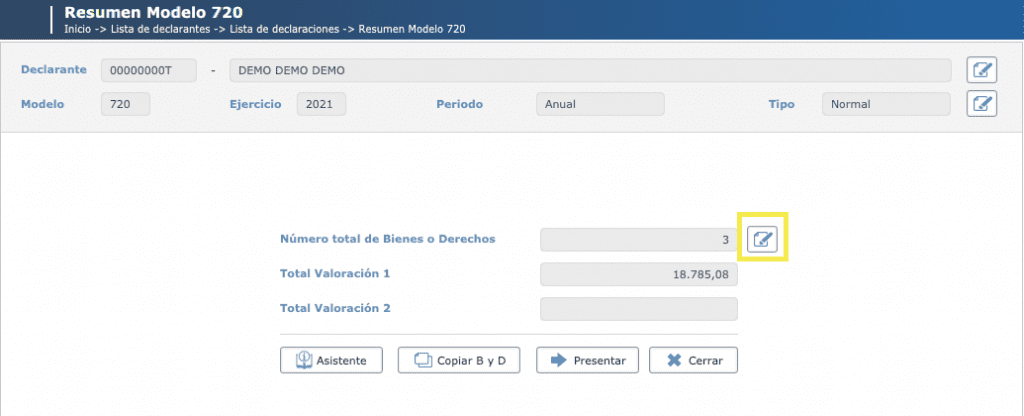
10/ Once you have double clicked on the table above, you can see the summary, and if you go to the "pencil" icon, you can enter to see all the assets and rights.
If, on the other hand, you wish to submit it, you have the icon with the "Submit" arrow.
11/ The list of assets is shown below. To see the details, double click on the asset you want more information about.

12/ Here you could make the necessary modifications or adjustments.

There are no further steps to follow.
You would have the option from file form 720 as indicated at the end of the steps 17.
Note: Type "Origin" records type "C".
If you have records of type "C", they are extinct securities (they were declared in your previous Model 720 return but you no longer hold them in your portfolio). The valuation indicated by Autodeclaro is the value you had in your previous Model 720 return, so it would be advisable to update it with the sale value of the security in question on that day.
The CSV files do not contain the date of sale or its value, so it is not possible to fill it in automatically.
In addition, these records of type "C" being extinct valuesappear totalled to the total value of the Model 720. Therefore it is possible that the sum of the total value that appears in the Form 720 is greater than its value on 31 December, as indicated by the broker.
Steps if your TIN/ID already exists in the list of declarants in the Bila database
13/ Create a new Model 720 declaration for the year 2021 under your NIF/DNI and do not enter any assets.
13.1/ To do so, go to "List of declarants" -> "Declarations".

13.2 Once there, go to the "New" button and create a Model 720 return for the year 2023.

Fill in the fields corresponding to form 720 for the year 2023 and click on accept.

The new Form 720 declaration for 2023 will appear in the list of declarations.

14/ Go to the list of declarants, and choose the declarant with NIF 00000000T and open the Model 720 declaration for the year 2023 (by double clicking on the declaration) that was previously imported.

14.1/ Once opened, choose the option "Copy B and D". A pop-up window will open for the destination declarant where this declaration will be copied from the 2023 Form 720 that was previously imported.

15/ If you have previously created the Model 720 declaration under the declarant with your NIF/DNI, tick the box and click on the button below. "Paste B and D".

16/ The following confirm the "Sticking" of Assets and Rights in the declarant of destination.
If you have assets and rights on your Form 720 return, you will have the option to add to existing assets and rights or to replace/substitute existing assets and rights.

Note: Type "Origin" records type "C".
If you have records of type "C", they are extinct securities (they were declared in your previous Model 720 return but you no longer hold them in your portfolio). The valuation indicated by Autodeclaro is the value you had in your previous Model 720 return, so it would be advisable to update it with the sale value of the security in question on that day.
The CSV files do not contain the date of sale or its value, so it is not possible to fill it in automatically.
In addition, these records of type "C" being extinct valuesappear totalled to the total value of the Model 720. Therefore it is possible that the sum of the total value that appears in the Form 720 is greater than its value on 31 December, as indicated by the broker.
Filing Form 720 in BILA
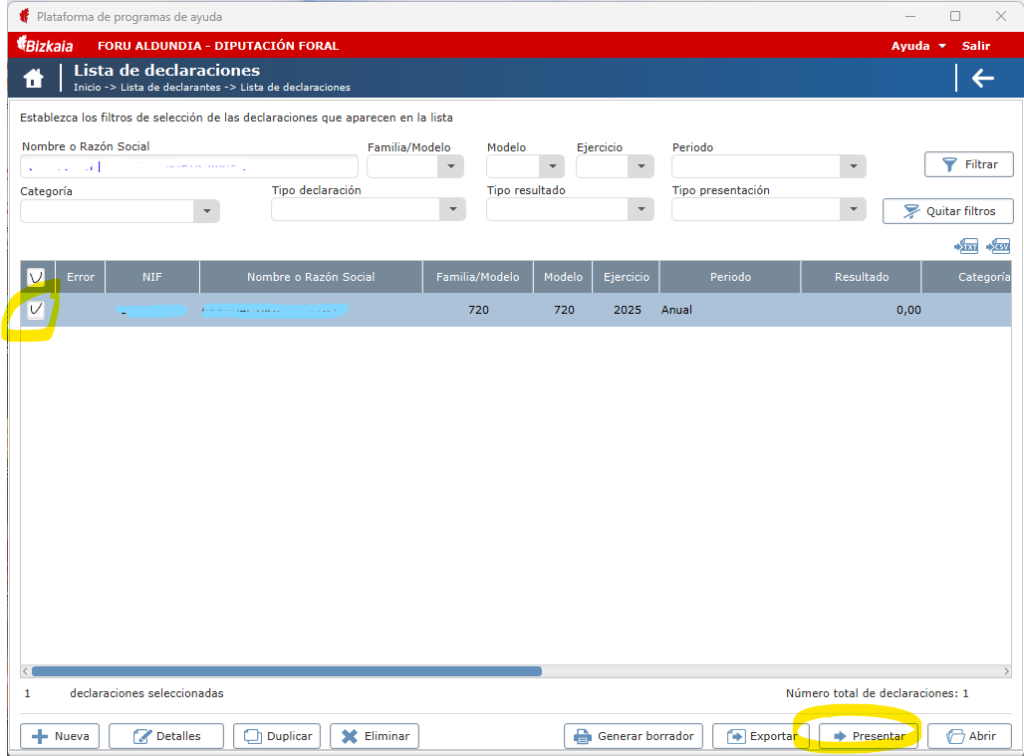
17/ Once you are on the declaration list, you have to file form 720.
- Select the declaration and go to the “submit” button.”
- Select “Send directly to e-Office”.”
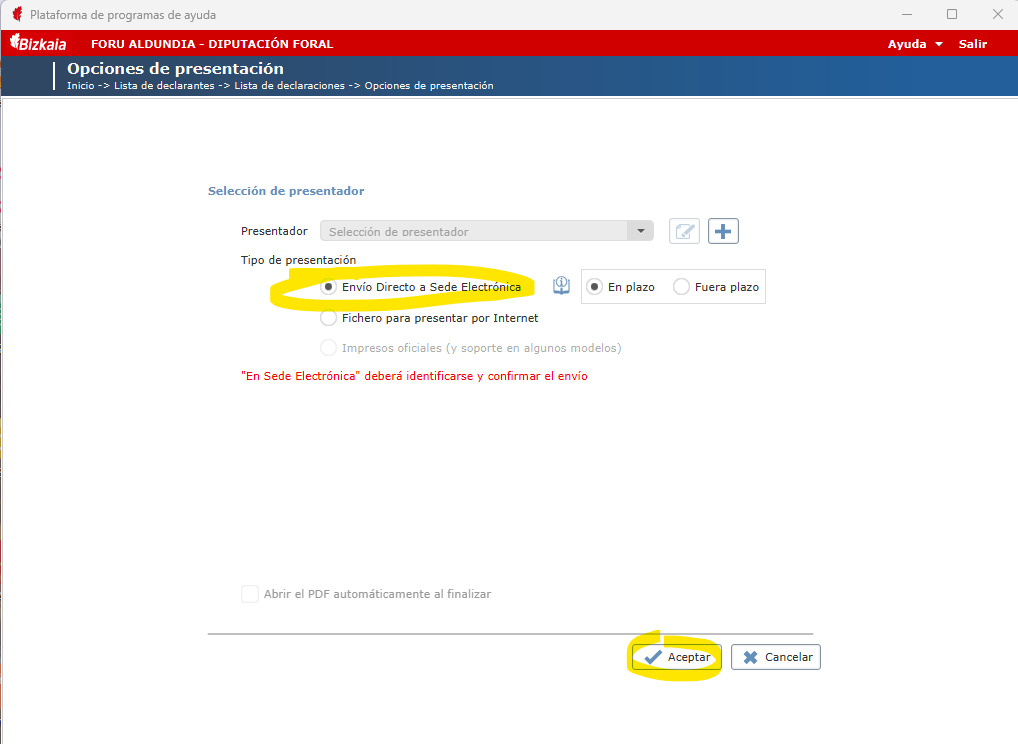
- The web browser will open to continue with the steps that will be shown to authenticate yourself in the regional government to file the Form 720.
Provincial Council of Alava
Here you can see the information on Form 720 in the Provincial Council of Álava: https://egoitza.araba.eus/es/-/modelo-720
NEW INSTRUCTIONS (2025)
We have to do two steps:
1/ Review .720 file
Note: If you want to see the content of the file, you can view it in the excel summary that you received by mail or you can import it into the Tax Agency (AEAT), It will not make any presentation, but you will be able to visualise the content, you can even make changes and export them for use in the step 2 Validate file and submission of Araba
If you do not change the name in the Tax Agency and then export it, the first thing to do is to adapt the model 720 file completed by Autodeclaro. It comes with a generic DNI/NIF, which is 00000000T, but for the tax authorities of Álava, you must have the DNI/NIF of the holder who is going to present it. Remember that:
- DNImust be 8 digits + letter
- NIE: letter + 7 digits + letter
A generic first name and surname are also indicated. STATE YOUR NAMEWe will also be able to replace it, although it is not compulsory according to what other customers have told us.
To do so, follow these steps:
- Open .720 file generated by Autodeclaro and received by email with windows Notepad (If you use Mac, you can open 'TextEdit').
- Replace DNI/NIF 00000000T with your ID card. Remember to have 9 digits in total. If your DNI needs 0 in front of it, enter them
- Go to the Edit" menu and select "Replace" or "Replace".. Once you have indicated the texts, select "Replace everything".

- There are clients who have not done this step and have had no problems in filing form 720, even so, we indicate how to adjust it in case you are interested in doing it.
- Replace first name and surname. In this case it is necessary to select the 40 characters of the first name and surname field:
- Text to be replaced: 'INDICATE YOUR NAME ' (40 characters)
- New name. Example: 'JOSE PABLO MARTIN TORRES ' (40 characters, add spaces)
- Go to the Edit" menu and select "Replace" or "Replace".. Once you have indicated the texts, select "Replace everything".
- Replace first name and surname. In this case it is necessary to select the 40 characters of the first name and surname field:
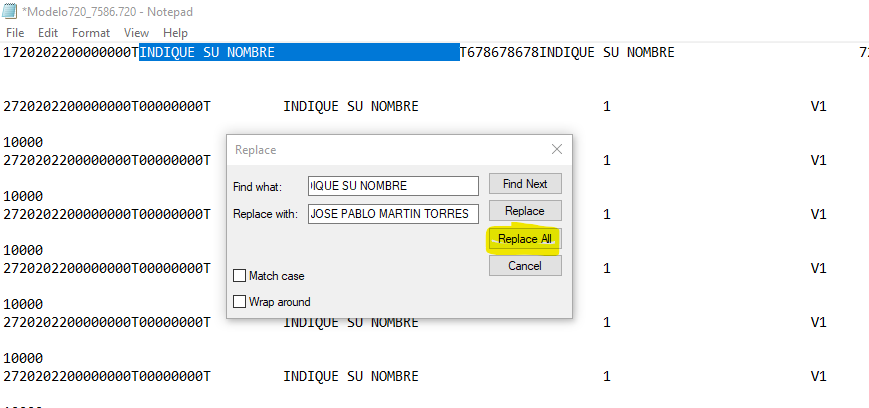
- Once the changes have been made, save the file with .TXT extension and you will be able to submit the file following the steps below.
2/ Validation of .720 file and submission
- Download model validator
https://web.araba.eus/es/hacienda/programa-de-ayuda-de-modelos-fiscales

- Open the programme installed in step 1 “model validator”. Click on the green + sign and select the Form 720 together with the year you want to file. Also select the .TXT file previously modified with your DNI and name.
- You can click on the icon on the right that has a folder with a green cross.

- Once the button on the right is clicked, it will validate the file and the result is shown below. It will create a ZIP file in the path specified in “Configuration”.”

- You can click on sede electrónica. Once you have authenticated yourself in the electronic office, you can choose the option of “Submission of declarations - Individuals“

- Go to “Generate and send” and select the form 720 together with the fiscal year. At the bottom left you will be able to select the .ZIP file generated by the model validator program.

- The only thing left to do is to go to “I want to send my model”.” where the Form 720 will be sent and you will obtain the proof of filing.
INSTRUCTIONS PRIOR TO 2024 - DO NOT CONTINUE THESE INSTRUCTIONS IF YOU HAVE ALREADY CARRIED OUT THE NEW INSTRUCTIONS ABOVE.
THESE INSTRUCTIONS ARE USEFUL TO CHECK THE CONTENT OF THE FILE, BUT THEY ASK FOR FIELDS THAT ARE NOT COMPULSORY AND WOULD TAKE TOO LONG TO REVIEW AND COMPLETE., THEREFORE, IT IS BETTER TO MAKE THE NEW 2025 INSTRUCTIONS EARLIER.
In order to file Form 720 with the Provincial Council of Álava you need the "Programa de ayuda para modelos fiscales", a software exclusively for Windows. It can be downloaded from here: https://web.araba.eus/es/hacienda/programa-de-ayuda-de-modelos-fiscales
1/ Once you have downloaded the form 720 generated by Autodeclaro. You have to change the extension .720 by .txt. The programme only accepts the import of this format.
The following are the detailed steps for the import of the Form 720 generated by Autodeclaro in the "Programa de ayuda para modelos fiscales" of the Provincial Council of Álava.

2/ Once you have opened the programme, choose the exercise you wish to submit and click on the "import".

3/ In the pop-up window, select the Fiscal Year, Model, Period and finally choose the file to import (The file generated by Autodeclaro que previously we have changed its extension from .720 to .txt)
Finally click on the green icon.

4/ Next you will see the import report. As a taxpayer you will see the default data that Autodeclaro has filled in, but later we will see how to modify it.
Click on the document icon with the green icon.
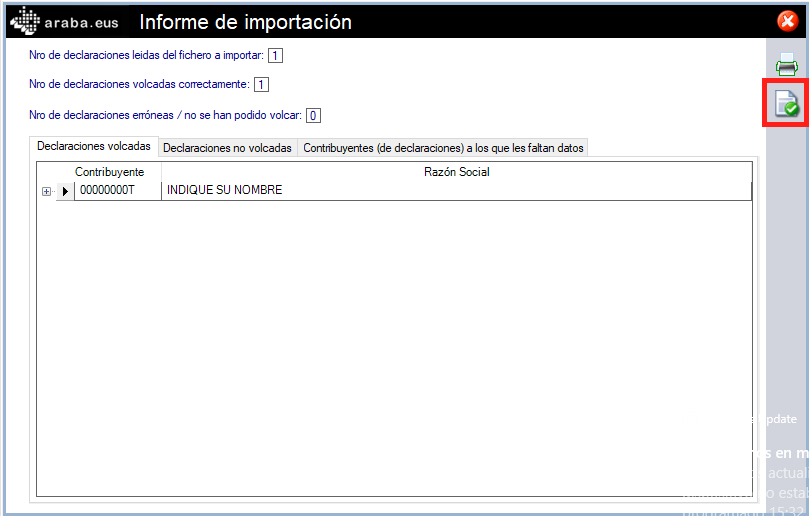
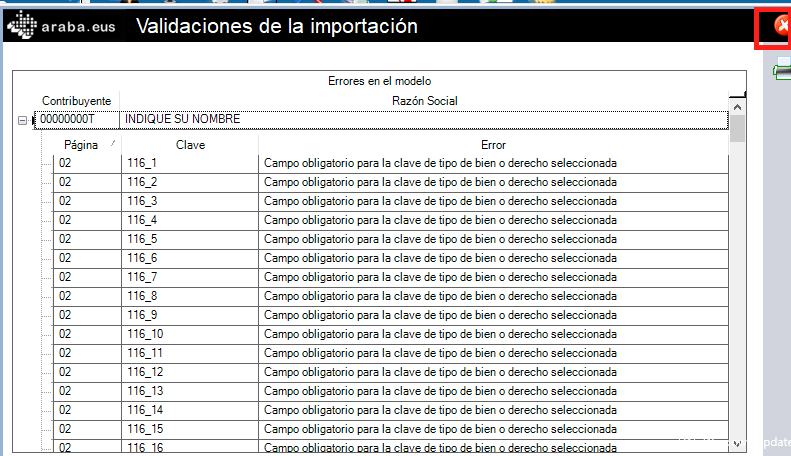
5/ The import validations are shown below. Later on we will see which errors we have to correct.
Close this and all open windows.
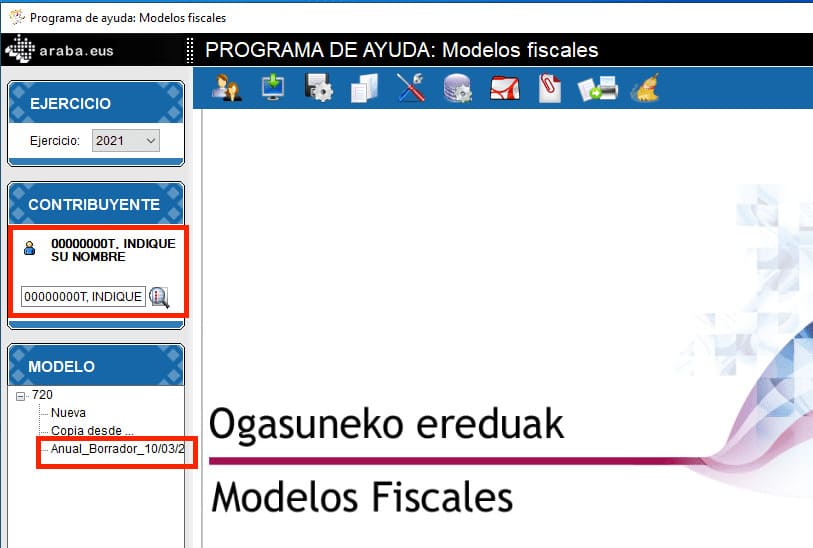
6/ We will see that you have created a taxpayer with DNI 00000000T, which contains the newly imported form 720.
Double click on the template "Annual_Borreo_XX/XX/XX/XXXX".
7/ You will see the contents of the first page. If you click on the save button, you will be able to see in detail the errors to be corrected.

8/ The errors refer to:
- Identification number in the country of tax residence
- Street name and house number
- Town/City
- Province/Region/State
- Postcode
- Date of incorporation

Note: These errors do not appear in the AEAT, Provincial Councils of Bizkaia, Gipuzkoa or the Treasury of Navarre. Only in the Provincial Council of Alava.
9/ Close the previous window.
Go to "Pages" and click on the right arrow to display the screen shown below.
Click on the lines in the table above and you will see the content of each position.
Mandatory fields are shown with a red exclamation mark.
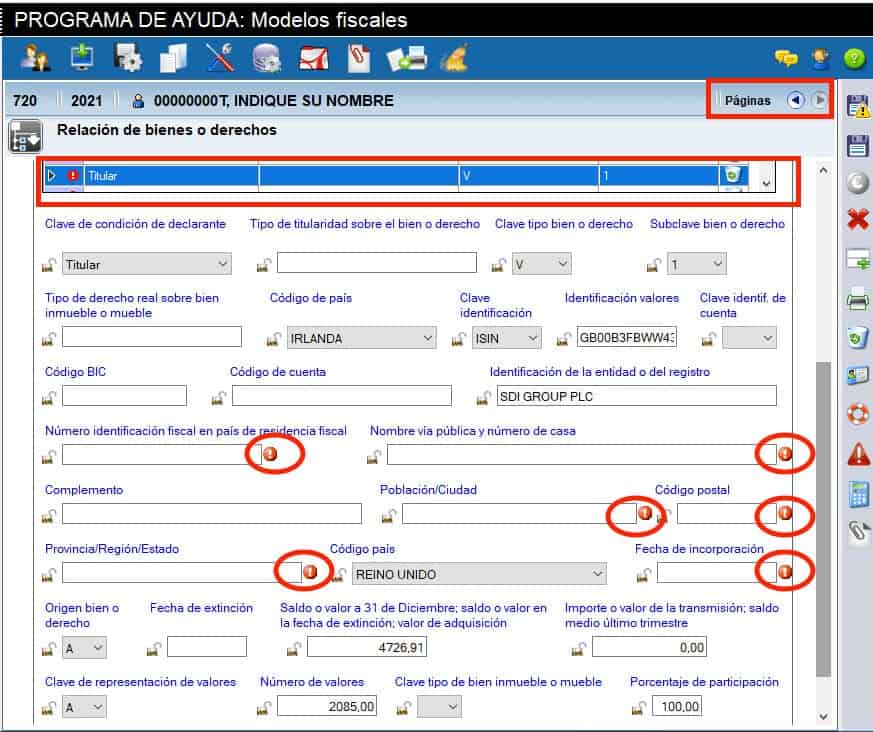
Note: Registers type "Originating asset or right" type "C".
If you have records of type "C", they are extinct securities (they were declared in your previous Model 720 return but you no longer hold them in your portfolio). The valuation indicated by Autodeclaro is the value you had in your previous Model 720 return, so it would be advisable to update it with the sale value of the security in question on that day.
The CSV files do not contain the date of sale or its value, so it is not possible to fill it in automatically.
In addition, these records of type "C" being extinct valuesappear totalled to the total value of the Model 720. Therefore it is possible that the sum of the total value that appears in the Form 720 is greater than its value on 31 December, as indicated by the broker.
10/ To fill in the address, we can search for it in Yahoo Finance, below is the address of the previous example "SDI GROUP PLC" and also the address of "Facebook".
https://es.finance.yahoo.com/quote/SDI.L/profile?p=SDI.L&.tsrc=fin-srch
https://es.finance.yahoo.com/quote/FB/profile?p=FB
Note: We regret that we are unable to provide this information, which cannot be found in the CSVs you provide. In the rest of the regional tax authorities and even the Tax Agency, it is a value that is not obligatory.
11/ For the tax identification numberis somewhat more complicated. As a general rule, in Spain it is the CIF of the company, but for foreign companies we can google "Tax ID number + company name".
12/ Finally, if we want to change the DNI 00000000T for our own, we have two options:
a/ Copy the Model 720 declaration from declarant 0000000T to our declarant with our DNI (if we already had it created).
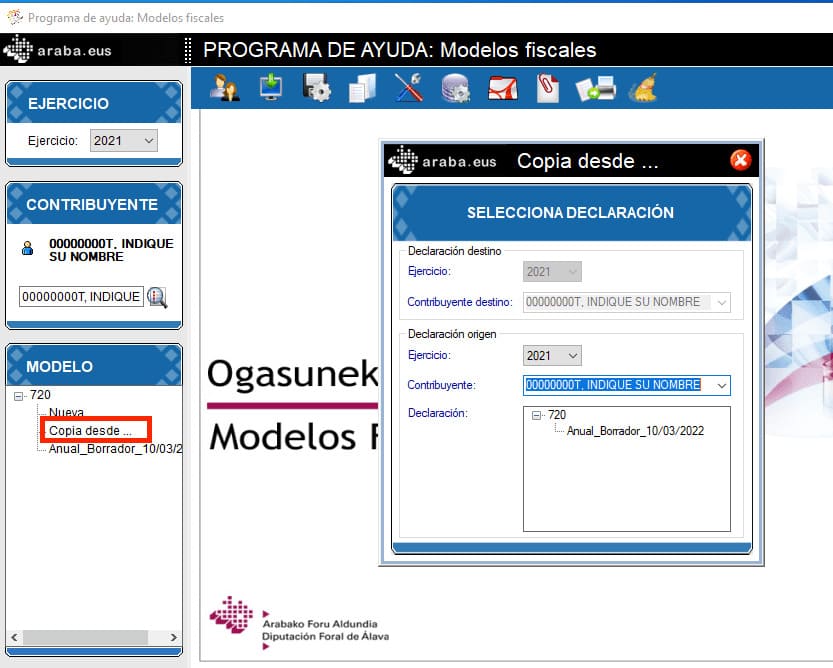
b/ If we do not have our DNI as declarant in the programme, we can simply change the DNI 00000000T to our DNI as follows:
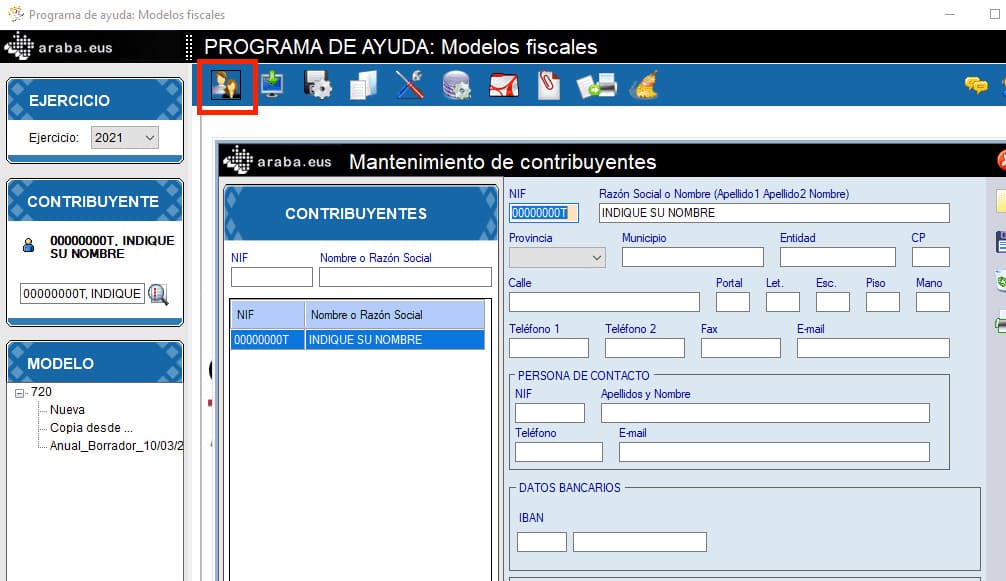
Treasury of Navarre
Revision of .720 file
The first thing to do is to adapt the model 720 file completed by Autodeclaro. It comes with a generic DNI/NIF number, which is 00000000Tbut for the Navarra Tax Office, you must have the DNI/NIF of the holder who is going to present it. Remember that:
- DNImust be 8 digits + letter
- NIE: letter + 7 digits + letter
To do so, follow these steps:
- Open .720 file generated by Autodeclaro and received by email with windows Notepad (If you use Mac, you can open 'TextEdit').
- Replace DNI/NIF 00000000T with your ID card. Remember to have 9 digits in total. If your DNI needs 0 in front of it, enter them
- Go to the Edit" menu and select "Replace" or "Replace".. Once you have indicated the texts, select "Replace everything".
Presentation of Form 720
- Go to the website of the Navarra Tax Office for Form 720.
- Go to "PROCESSING". and go to the button “TRAMIT“
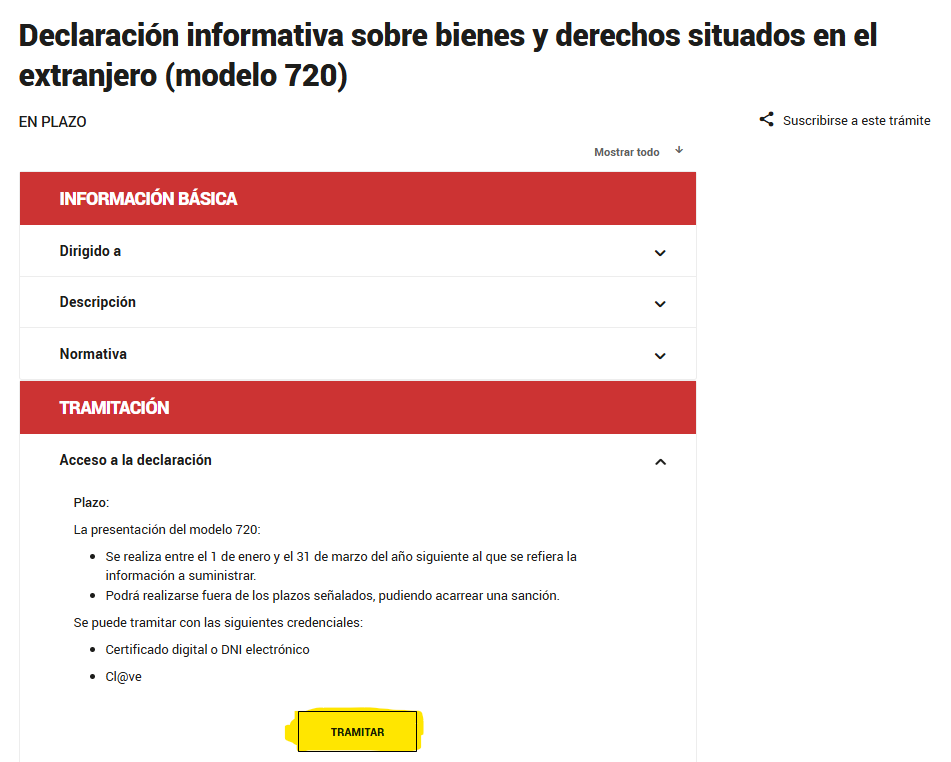
- On the next screen you have to indicate: “EXERCISE“, “NIF" y "SURNAME, FIRST NAME“. Then go to “Create declaration“.
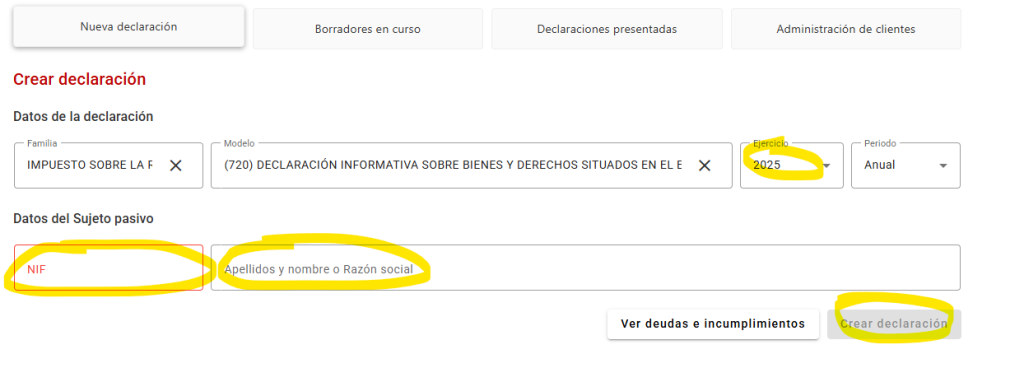
- You will then be able to import your Modelo 720. Select the file by clicking on the “attach file”and then go to “import“
Note: Remember that your file received by Autodeclaro must have your NIF as stated above. previously explained.
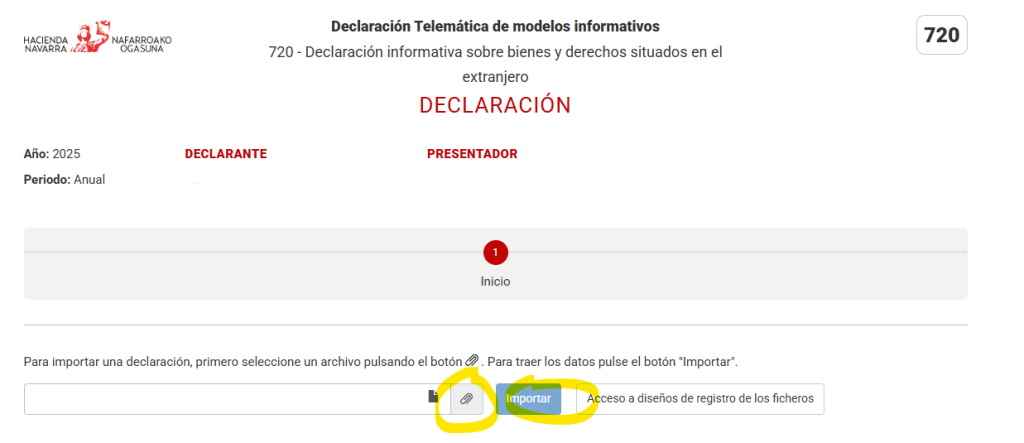
- Once imported, you will be able to see the summary of your declaration and the list of imported goods.
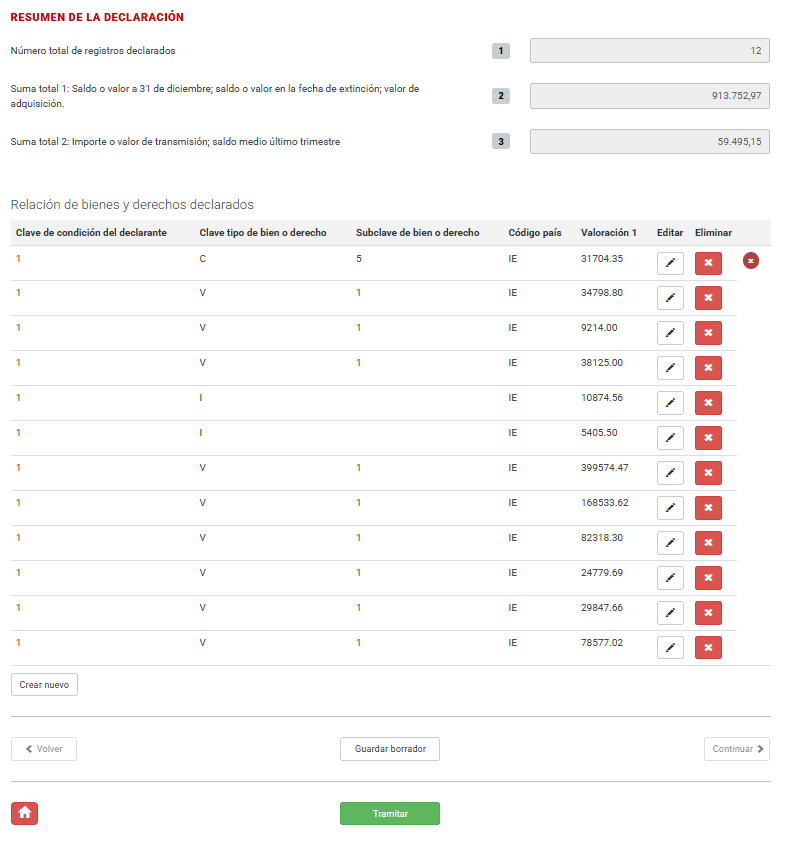
- You can review each asset by clicking on the “edit icon“, “create new” o “Process”if you agree with what has been imported
At present, the following boxes are compulsory for the Navarra tax authorities
- Tax identification number in the country of tax residence is compulsory (Box 25):
- Date of incorporation (Box 32).
- Address of the Casillas property (26,27, 28, 29, 30).
Autodeclaro may not have all the data complete, however in order to avoid these errors, at the end of the order there is a checkbox “I'm a taxpayer in the tax authorities of Navarre “ so that the model 720 generated does not have to be completed at all. How is it done?
- Tax identification number in the country of obligatory tax residence (Box 25): If we do not have the data in our database, we will indicate by default the value “ISIN“.
- Date of incorporation (Box 32). The default value is 1 January 2025. (current year minus 1)
- Address of the asset Boxes (26, 27, 28, 29, 30). If we do not have the data in our database, we will indicate the address by default: “-“.
You can change this information manually at any time after importing the file.
Or you can not apply
Note: Type "Origin of good" records type "C".
If you have records of type “C”, these are extinguished securities (they were declared in your previous Model 720 return but you no longer hold them in your portfolio).
If you used the CSV from your broker, and attached the transactions. The amount and date of sale of the “C” type records are automatically filled in.
In addition, these records of type "C" being extinct valuesappear totalled to the total value of the Model 720. Therefore it is possible that the sum of the total value shown on the Form 720 is greater than its value as at 31 December as indicated by the broker or its investment platform.
Declare your broker's cash account
If you need declare your broker's cash account, here are the instructions
© 2021 AUTODECLARO.ES - All rights reserved
SOFTWARE DEVELOPED IN SPAIN
 Español
  English (UK)
  Deutsch
  Français