
DOWNLOAD GUIDE MODEL 720
Your statements from iBroker,
step by step.
Set up a Flex enquiry, download your portfolio and gather any additional documentation if you have already submitted Form 720.
BEFORE YOU START
What do you need to download?
You’ve already submitted it
Please attach the accounts for the most recent financial year in which you included this entity.
See what you need to add ↓Keep the original CSV file. Don’t open it and save it again using Excel or Numbers. To check it, use a copy.
Select all your accounts if you have more than one. These instructions also apply to Mexem, GPM, iBroker and ProRealTime accounts that use the IBKR platform.
THE DOWNLOAD
Prepare your statement, step by step.
Create a Flex query
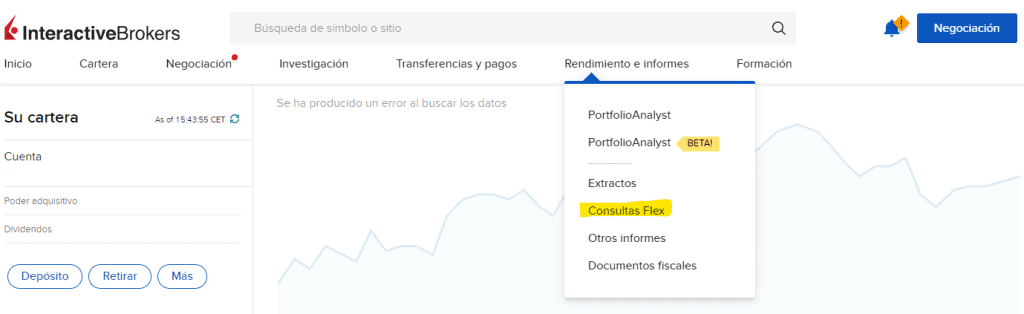
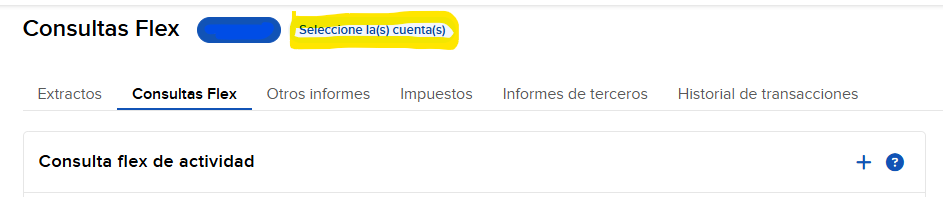
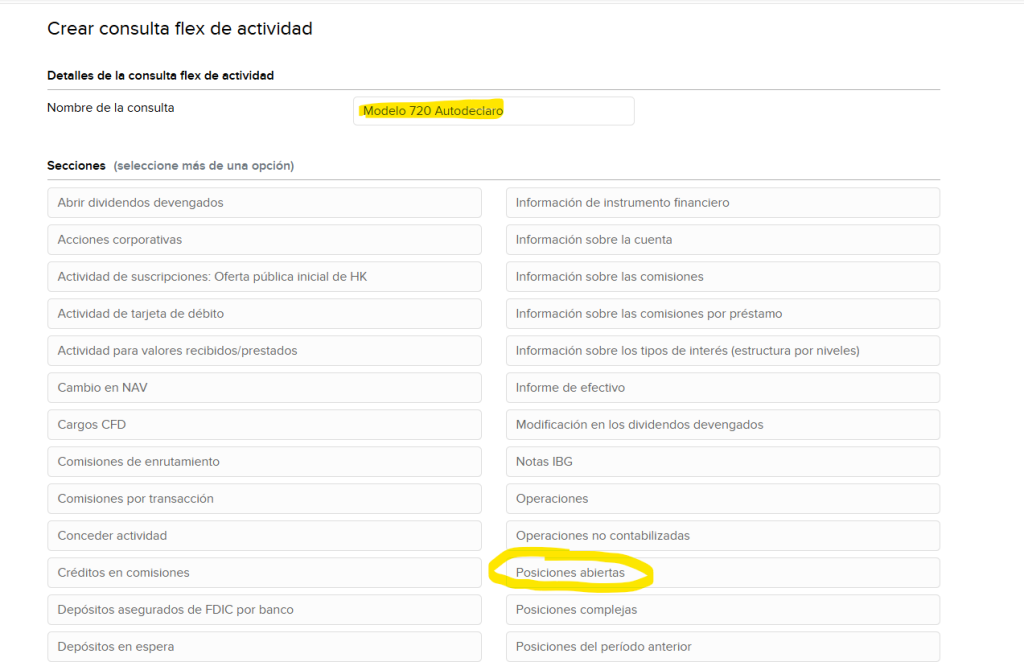
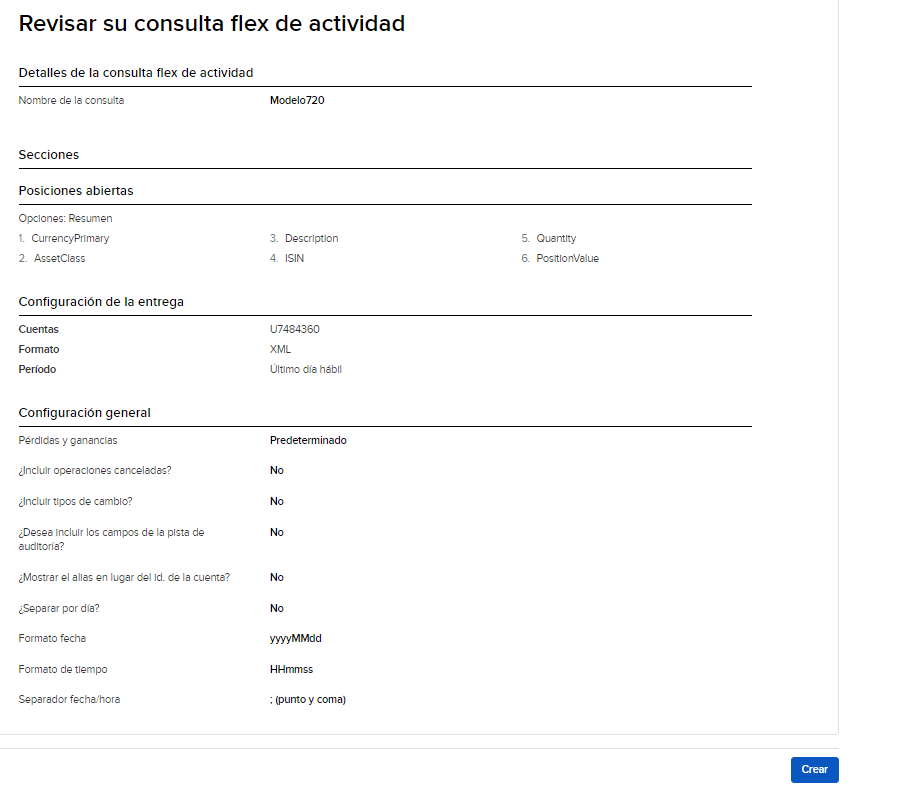
Performance and reportsFlex Consultations+Log in to the Client Portal and create an enquiry. Select the accounts, give it a name, such as «Form 720 Self-Assessment», and choose Open positions.
Open Client Portal →
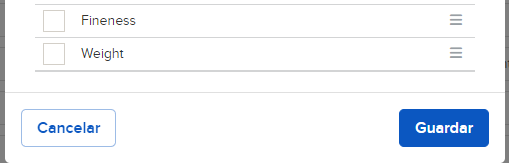
Create a Flex query. The data shown is for illustrative purposes only.Expand + Create a Flex query. The data shown is for illustrative purposes only.Expand + Create a Flex query. The data shown is for illustrative purposes only.Expand + Select the six fields
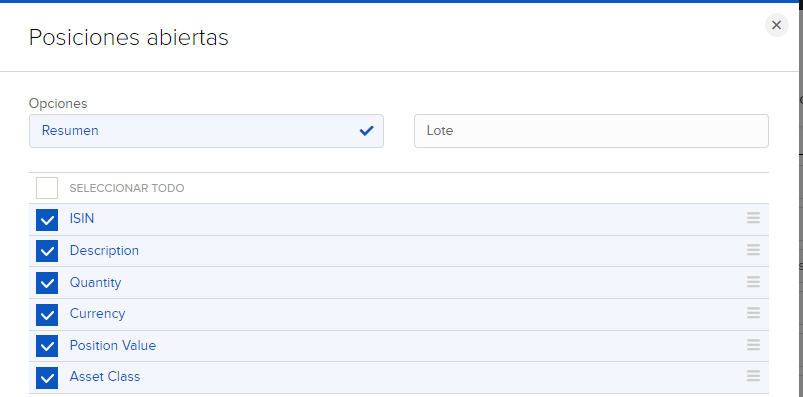
Tick these boxes and click Save:
- ISIN
- Description
- Quantity
- Currency
- Position Value
- Asset Class
Select the six fields. The data shown is for illustrative purposes only.Expand + Select the six fields. The data shown is for illustrative purposes only.Expand + Save your enquiry
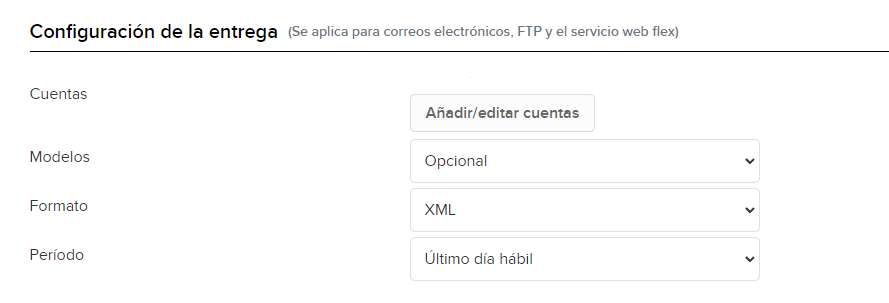
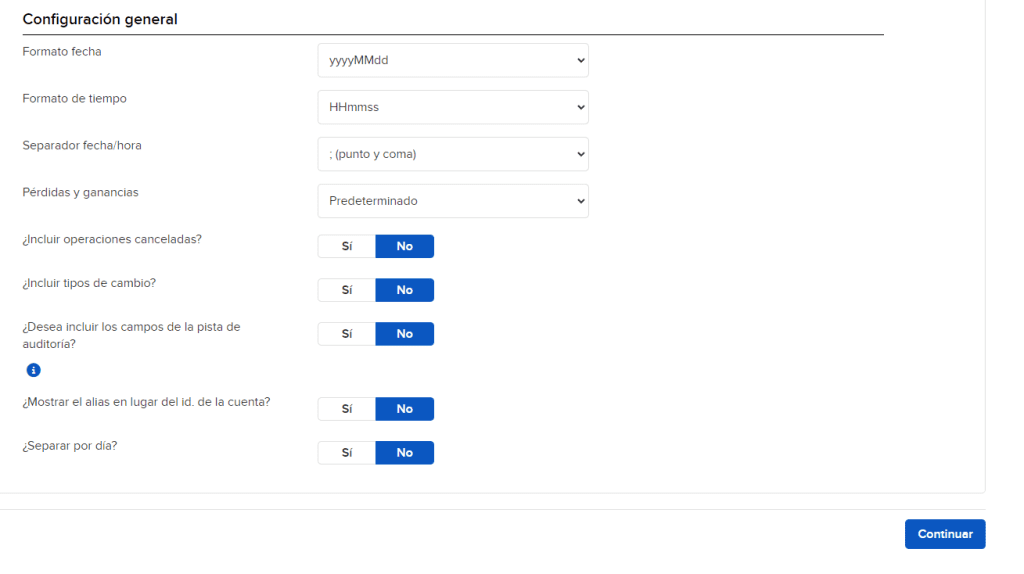
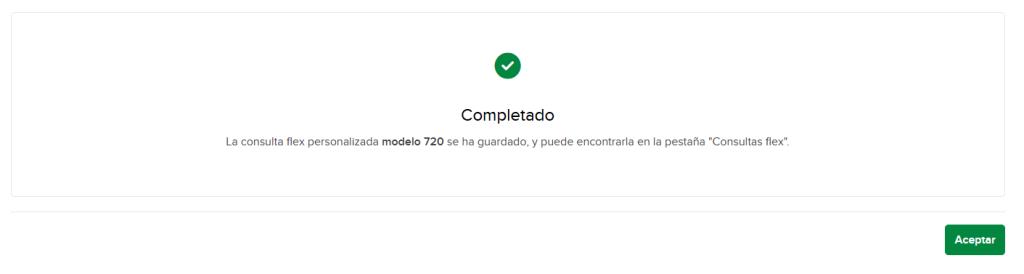
Leave the other options as they are. Click Continue, check the summary and select Create. Accept the confirmation.
Save the query. The data shown is for illustrative purposes only.Expand + Save the query. The data shown is for illustrative purposes only.Expand + Save the query. The data shown is for illustrative purposes only.Expand + Run the query at the end of the financial year
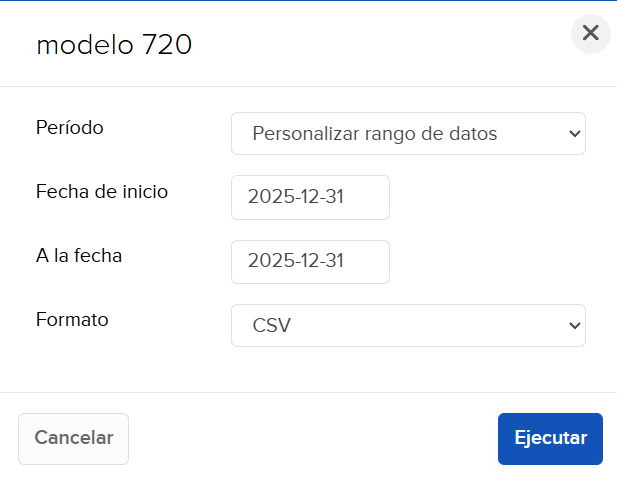
Tap the icon to run the query. Under «Period», choose a custom range and select CSV. The start date and end date must be the same: 31 December of the financial year for which you are filing your tax return.
Run the query at the end of the financial year. The data shown is for illustrative purposes only.Expand + Run the query at the end of the financial year. The data shown is for illustrative purposes only.Expand + Identify the exercise and the headlines
Keep the original CSV file. The filename allows you to specify the financial year, the account holders and, where applicable, the country:
IBKR_2025.csv: By default, the system selects a title and the IE code (Ireland).2_IBKR_2025.csv: two headlines.1_US_IBKR_2025.csv: a country code and US code; this is just an example, not a recommendation for a specific country.
Check your account details. If you specify the country, you must also include the number of account holders in the prefix.
ONLY IF YOU HAVE ALREADY SUBMITTED IT
Please complete the above documentation.
As well as the portfolio for the financial year you are going to declare, add that of the most recent financial year for which accounts have been filed in which you included this entity. Identify the financial year in each file.
Add the transactions for all financial years following the most recent one reported, including the financial year you are preparing. Please do not attach the dividend history for this process.
Prepare the transactions →AN EXAMPLE
You’ve set your sights on 2023 and are now preparing for 2025.
Compile the portfolios as at 31 December 2023 and 31 December 2025, together with the transactions from 2024 y 2025.
FINAL CHECK
Your files, ready to send.
The exercise is correct. Check the dates on the documents and the year stated in their names.
There is no missing information. It includes all the items, pages and headings specified in this guide.
The format is retained. Check the file extensions. If you have several files, group them into a single ZIP file.
You can now continue with Auto 720.
OTHER QUESTIONS
The details of your case.
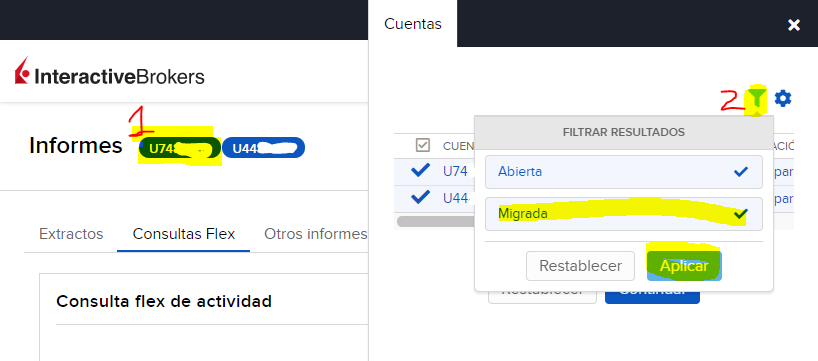
My old or migrated accounts aren’t showing up
Open your account ID or «Add/edit». In the filter, tick Migrada and press Apply. Select the accounts for which you need to retrieve statements.
What about the cash?
My document is in a different format
Do not alter figures, columns or identifiers to make them fit an example. Check with Autodeclaro if the structure does not match.
View my statement →Instructions and screenshots based on the original Autodeclaro guide →. The screenshots retain their original format and may show previous exercises.
 Español
 English (UK)
 Deutsch
 Français