
DOWNLOAD GUIDE MODEL 720
Your statements from Scalable Capital,
step by step.
Download your documentation and prepare the files you need for Auto 720.
BEFORE YOU START
What do you need to download?
It’s your first Model 720
The securities statement; the format depends on the custodian and the financial year.
See the steps ↓You’ve already submitted it
Please attach the accounts for the most recent financial year in which you included this entity.
See what you need to add ↓If you have a Statement of securities from Scalable, follow these steps. If your documentation relates to Baader Bank, please use the alternative shown below.
THE DOWNLOAD
Prepare your statement, step by step.
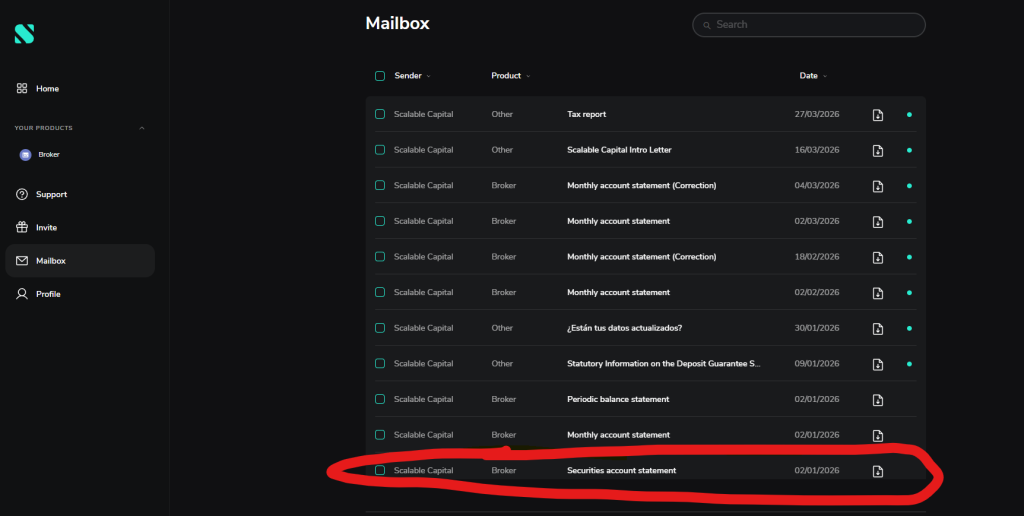
Open the document inbox
My profileMailboxDownload the Statement of securities which reflects the positions as at 31 December. It may be published in January of the following year.

Open the document inbox. The data shown are examples.Expand + Copy the bookmarks from Chrome
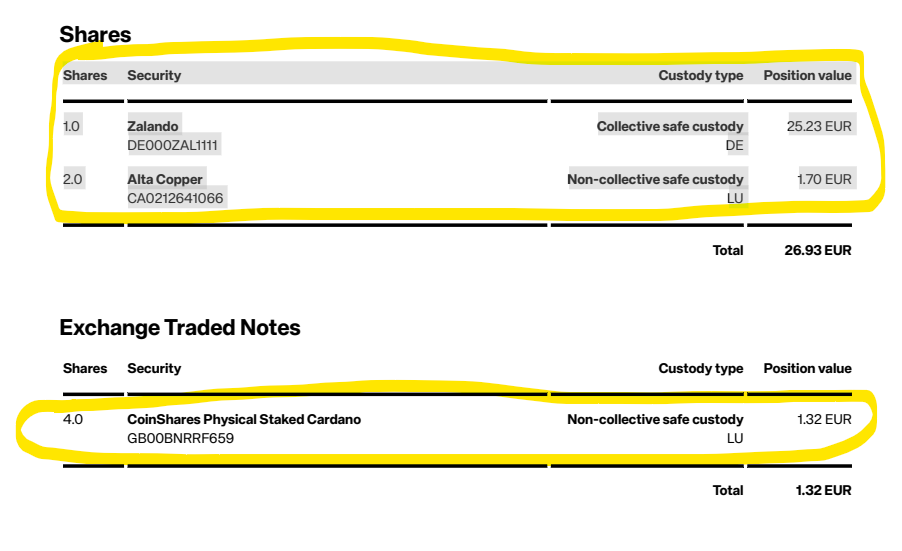
Open the PDF with Google Chrome and copy the table indicated, including its headings and all the entries.
Copy the positions from Chrome. The screenshot data are examples.Expand + Save the file
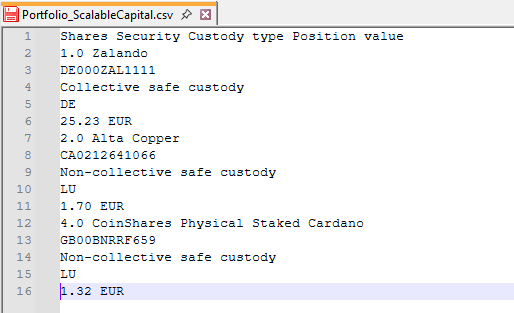
Paste the content into Notepad (Windows) or TextEdit in plain text mode (Mac). Retains the headers, rows and order of the data. Saves the file with the extension .csv and includes the word ‘exercise’ in the name: for example,
ScalableCapital_2025.csv.Save the file. The data in the screenshot are examples.Expand +
ONLY IF YOU HAVE ALREADY SUBMITTED IT
Please complete the above documentation.
As well as the portfolio for the financial year you are going to declare, add that of the most recent financial year for which accounts have been filed in which you included this entity. Identify the financial year in each file.
AN EXAMPLE
The last tax year you declared was 2023.
If you’re preparing for 2025 now, gather the extracts from 2023 and 2025. If there were any sales or cancellations, check how to fill in the relevant details; position statements do not always contain this information.
FINAL CHECK
Your files, ready to send.
The exercise is correct. Check the dates on the documents and the year stated in their names.
There is no missing information. It includes all the items, pages and headings specified in this guide.
The format is retained. Check the file extensions. If you have several files, group them into a single ZIP file.
You can now continue with Auto 720.
OTHER QUESTIONS
The details of your case.
Alternative: Baader Bank CSV file
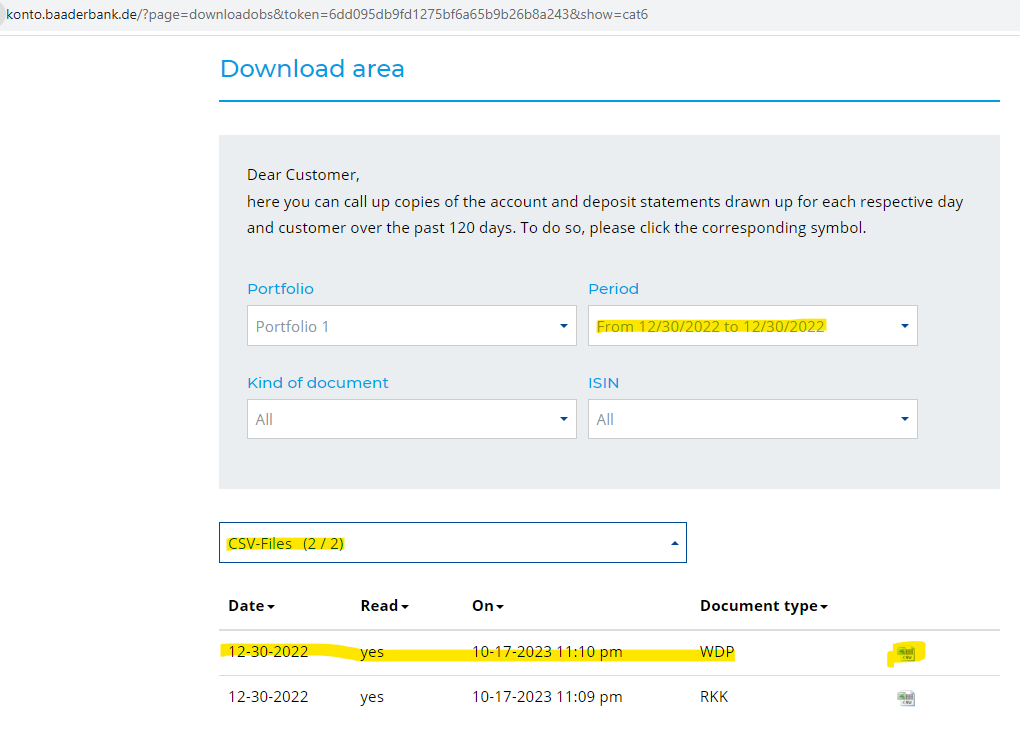
For accounts and financial years in this format, log in to Baader Bank and go to Downloads. Download the CSV file of type WDP at the end of the financial year; in the historical guide, the last working day of the year is selected.
For example: 30/12/2022 or 29/12/2023. Use the closing date that corresponds to the financial year of your document. If the WDP/RKK documents do not appear, please contact support.
The original credentials were sent in the «Account Opening Confirmation» email from Baader Bank. Please keep the downloaded CSV file as it is, without saving it again from Excel or Numbers.
Open Baader Bank →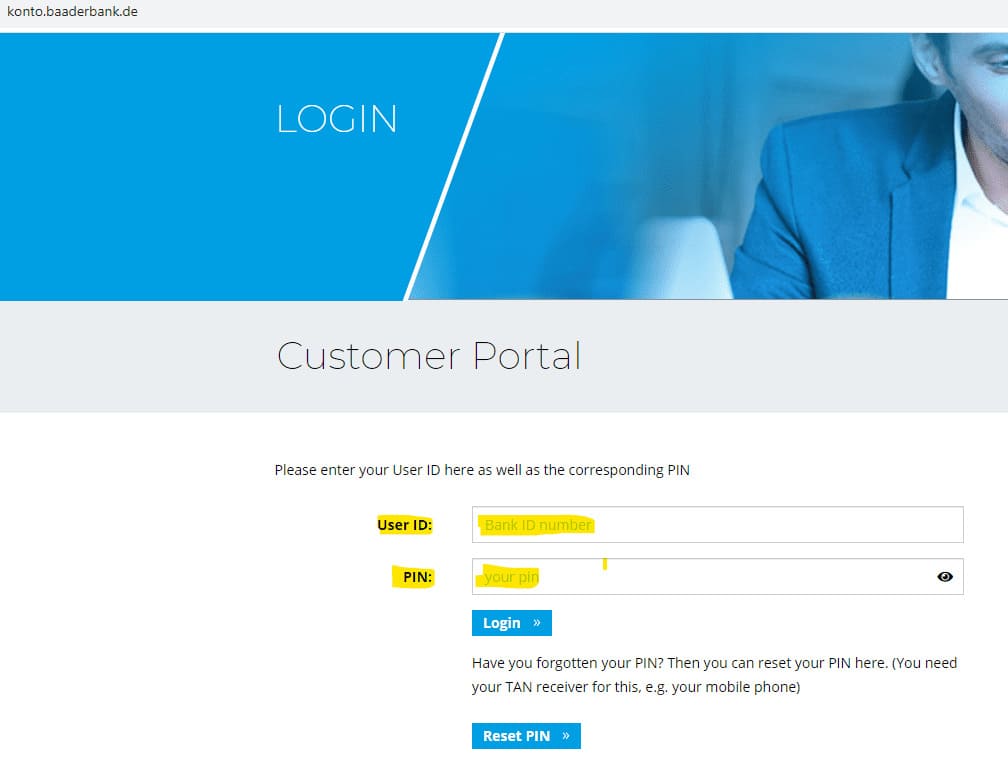
How do I save a CSV file as plain text?
On Windows, use Notepad and save the file with a .csv extension. If the programme adds .txt, select «All files» when saving. On a Mac, use TextEdit → Format → Convert to plain text before pasting the data.
Renaming a PDF or Excel file to «.csv» does not convert its contents. Please follow the copying or exporting instructions provided for this file type.
My document is in a different format
Do not alter figures, columns or identifiers to make them fit an example. Check with Autodeclaro if the structure does not match.
View my statement →Instructions and screenshots based on the original Autodeclaro guide →. The screenshots retain their original format and may show previous exercises.
 Español
 English (UK)
 Deutsch
 Français